
As a member of UNA, Members are eligible to attend Events organized by your Local, as well as workshops provided by UNA’s Educators.
Currently, you can register for Events through DMS Web, or the iOS app.
- Event Types
- Registering for an Event
Event Types
- Local Event: Local events are controlled completely by the Local.
- Workshop: The Executive Board of UNA has established a set of guidelines for Provincial workshops that will assist in helping you determine which sessions you might attend or explain why you are ineligible for a particular event.
- Provincial: All provincial sessions have a restriction of 5 Members from a given Local in order to provide the option to as many Locals as possible.
If you have exceptional circumstances that might override the provincial regulations outlined, contact your Local Executive for assistance. If it is felt that you would benefit from the session a request for special consideration will be sent via email to events@una.ca
DMS Web Registration
Navigating Events Page
- Log into DMS Web: https://dms.una.ca
- In the Navigation Menu (red bar on the left side), go to Events:

Registration for an Event
- Find the Event that you’re looking to Register for, and click the up arrow:

- From the Event Detail page, you’ll be able to see your Eligibility (1), and choose from the drop down your Registrant Type:

- You’ll get a confirmation banner once you have registered. From here, you can also Withdraw:

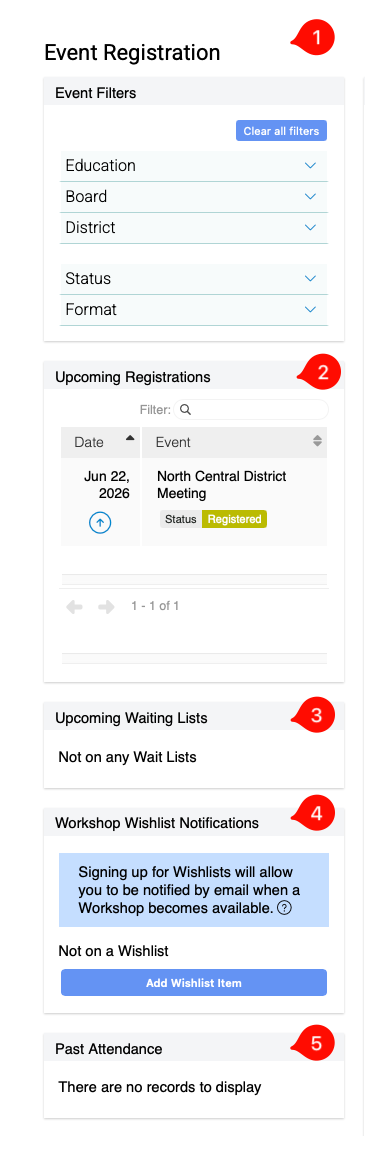
- From the Events page, you can also:
- Use Filters to find an Event
- See your Upcoming Registrations
- See if you are on any Waiting Lists
- Add Wishlist (to be notified when Workshops become available)
- See your Past Attendance
-
Waiting Lists
Some Events have the option of Waiting List if the Event is at attendance capacity. The Waiting List is managed by the Event Manager. Please note: When a spot becomes available, acceptance will be determined on a first-come, first-served basis according to response time, rather than the order in which individuals joined the wait list.
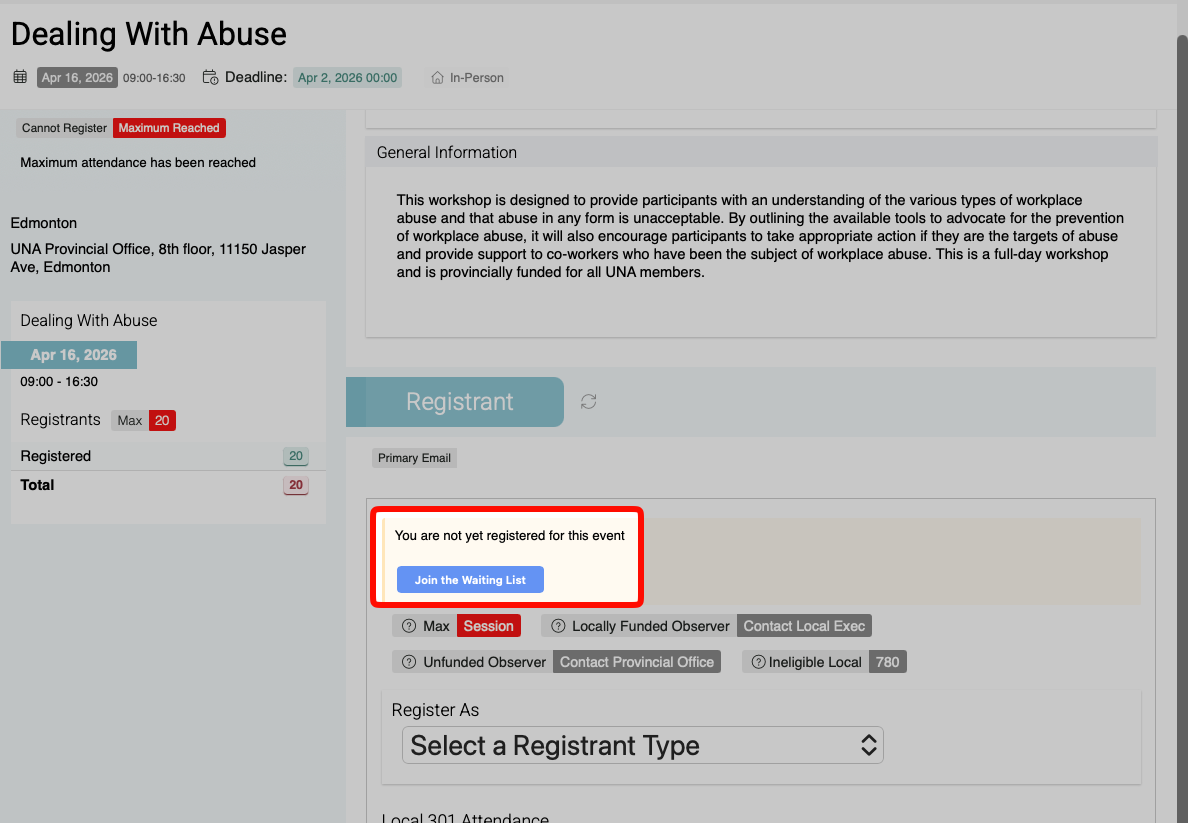
- Navigate to the Event Detail page. If the Event is at attendance capacity, and the Waiting List feature is on, you’ll be able to Join the Waiting List:
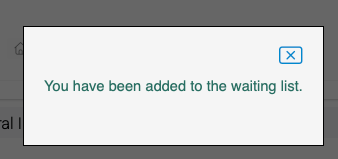
- Once you have joined, you’ll get a confirmation popup:
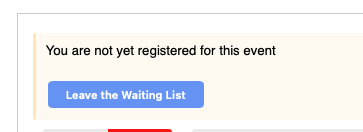
- You can also remove yourself from the Waiting List in the Event Detail page:
- You can see what Waiting Lists you are on via the Events Main page:
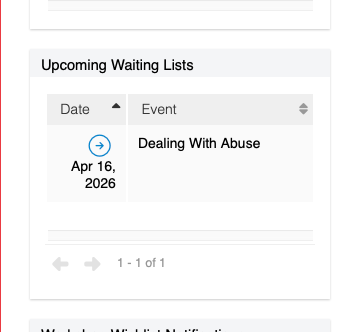
- Navigate to the Event Detail page. If the Event is at attendance capacity, and the Waiting List feature is on, you’ll be able to Join the Waiting List:
iOS Registration
Navigating Events Page
- To find Events – navigate to the Feed tab (bottom left) and at the top there are two Sections: News and Events. Tap on Events. The Events Section is a viewing section also available to the Public.
or
- In the DMS (bottom left tab), then in the Nav Menu (red bar) you can tap Events.
Registering for an Event
- Find the Event that you are looking to Register for.
- You can use the Filter button:
The filter works as an OR list: in other words, if you selected “Calgary” and “PRC”, it’ll filter down to Events that are either Calgary or PRC (or both), but not those that are both.
- You can use the Filter button:
- Tap on the Event – this will bring you to the Event Detail
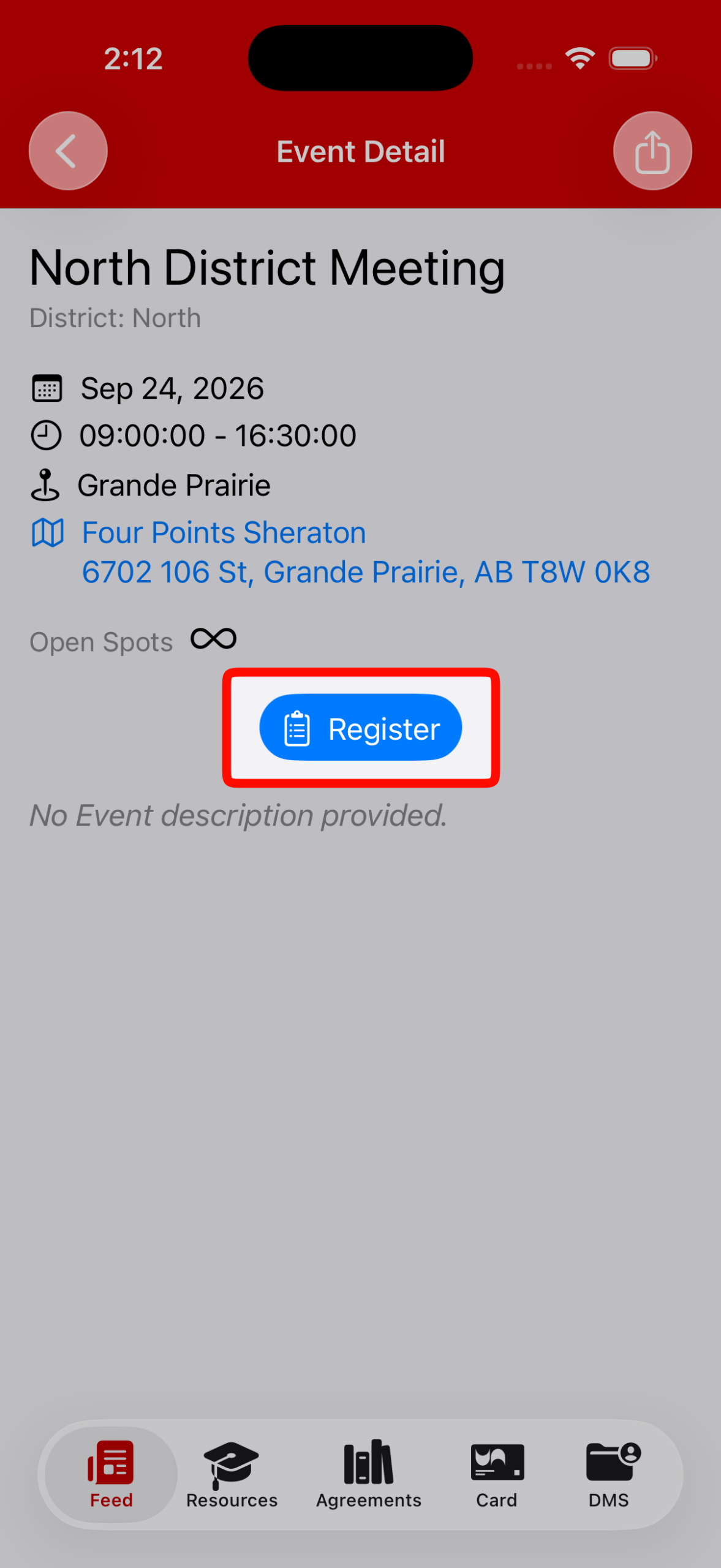
- Tap on the Register button:
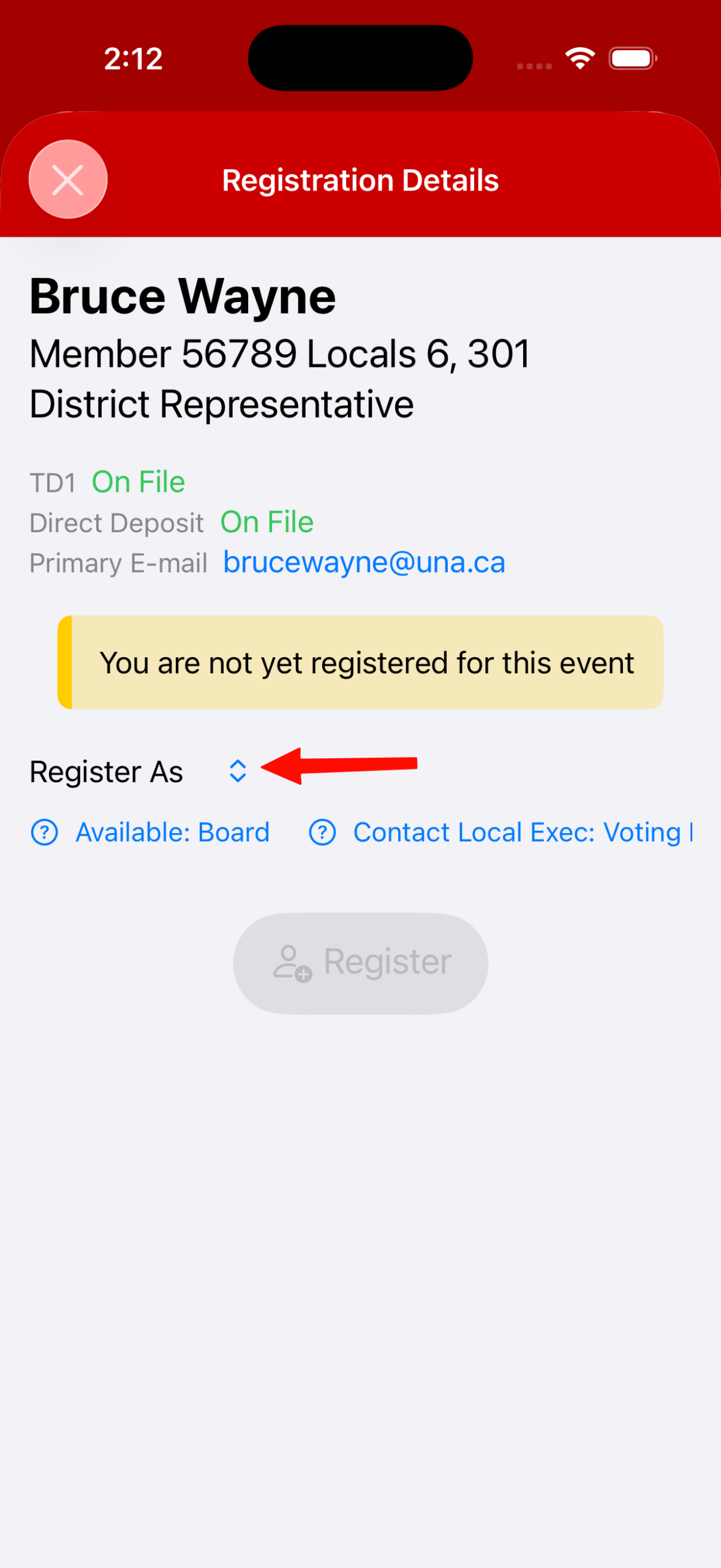
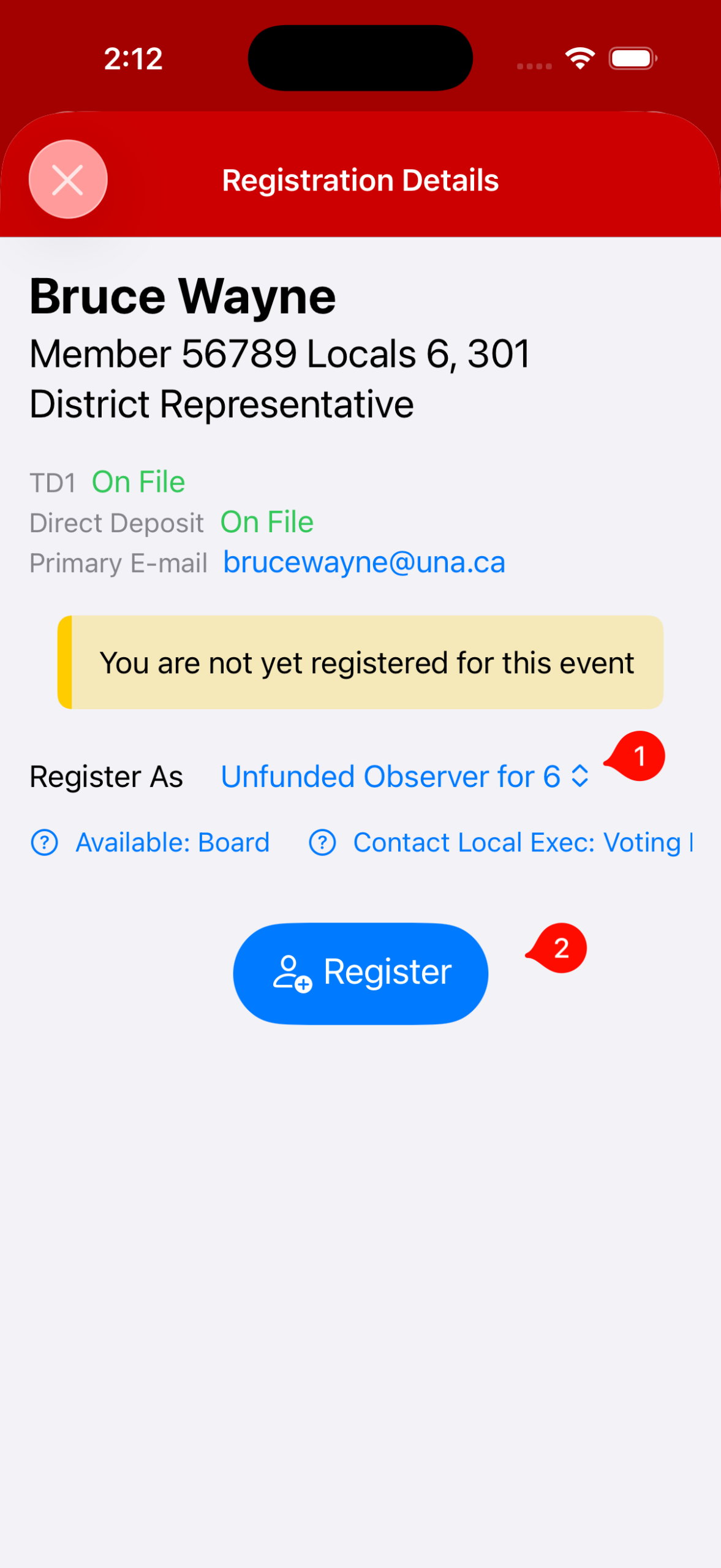
- Tap on the Dropdown arrow beside Register As to choose your Registration Type. Available options will populate:
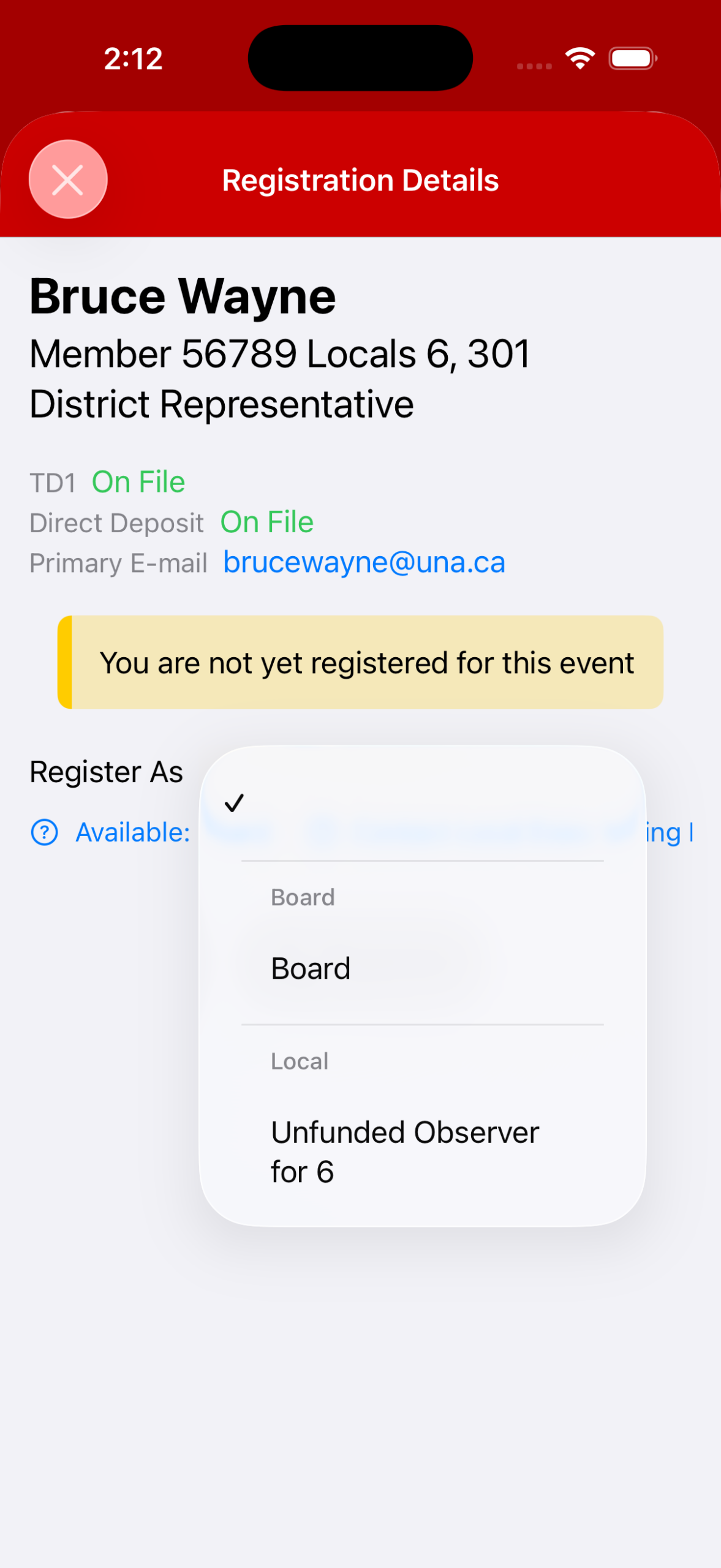
- Important: You must hit the Register button after confirming your Registrant Type:
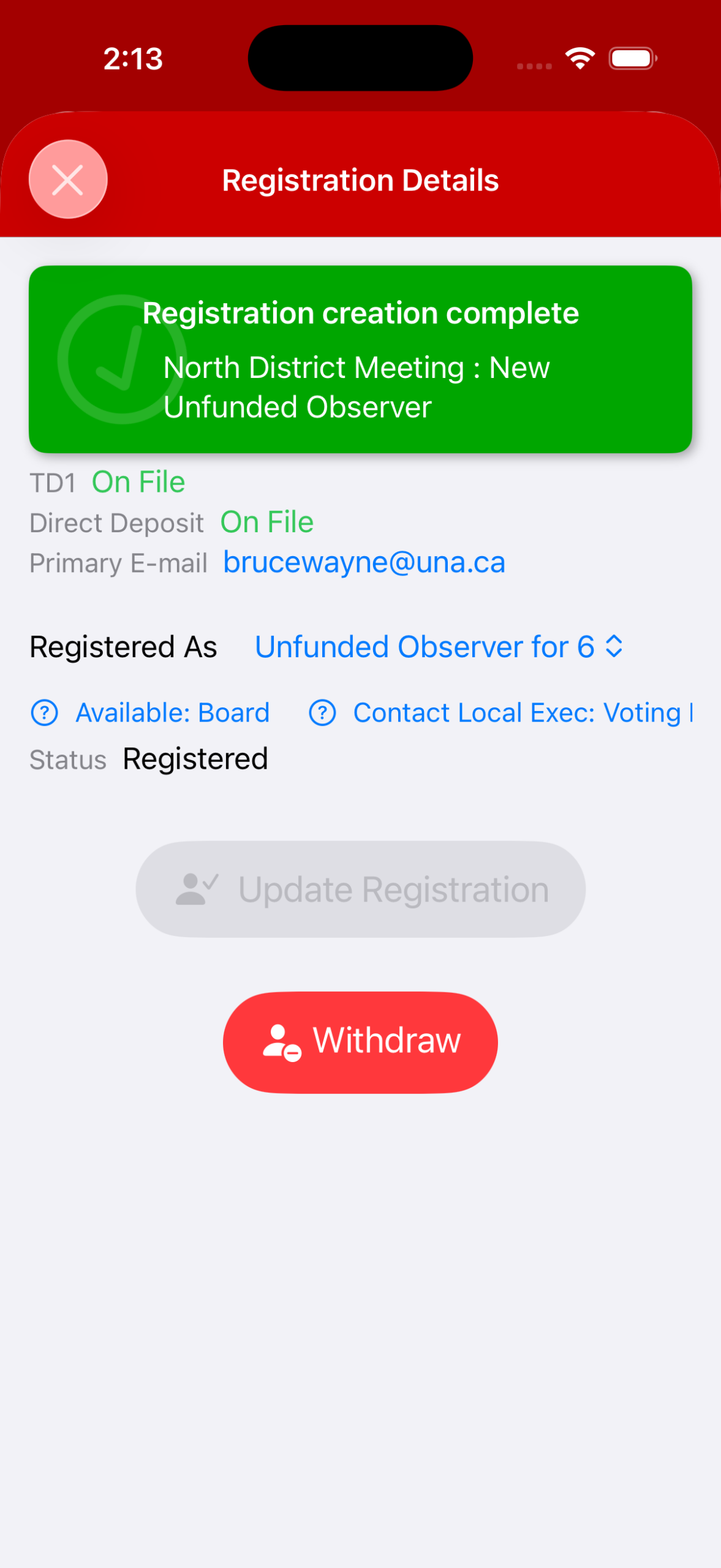
- You will get a confirmation status at the top when you have successfully registered:
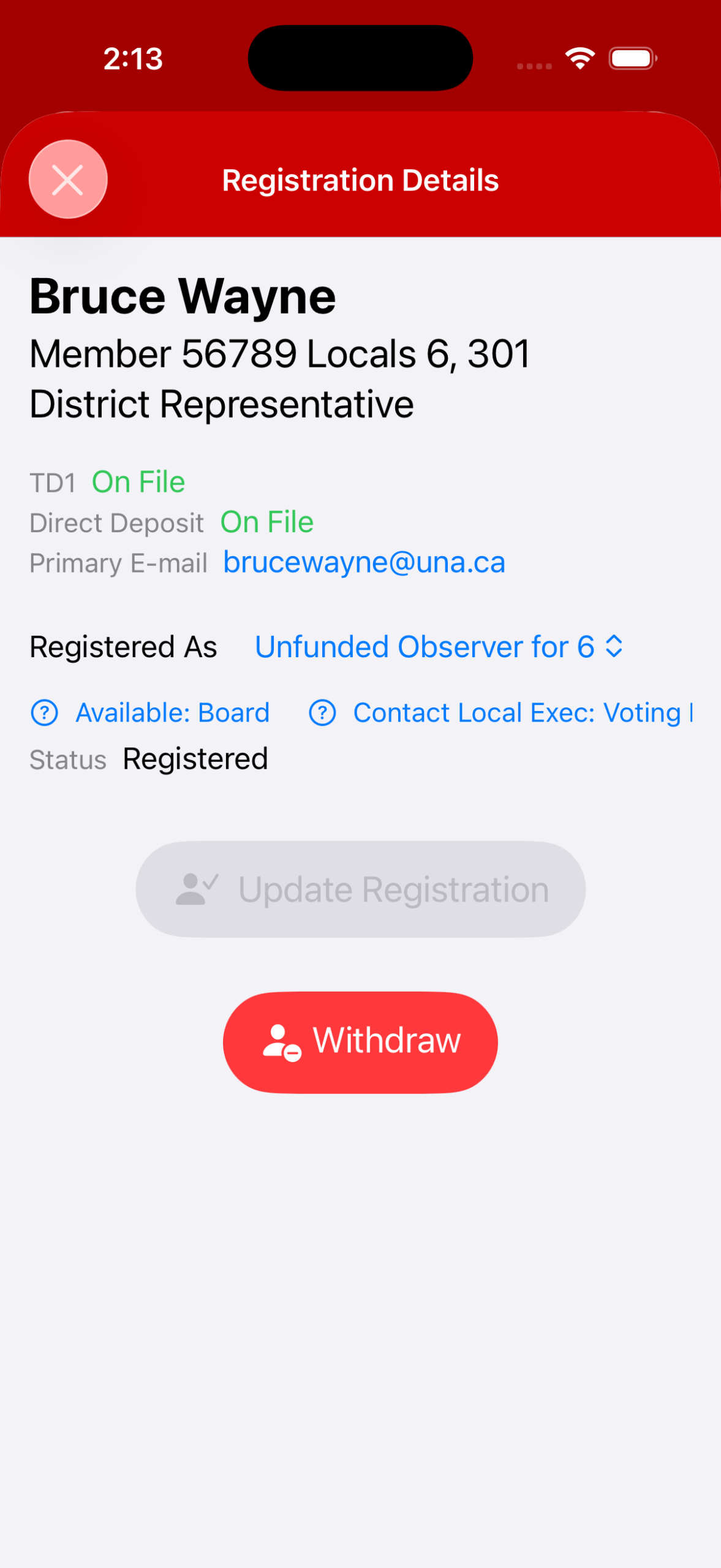
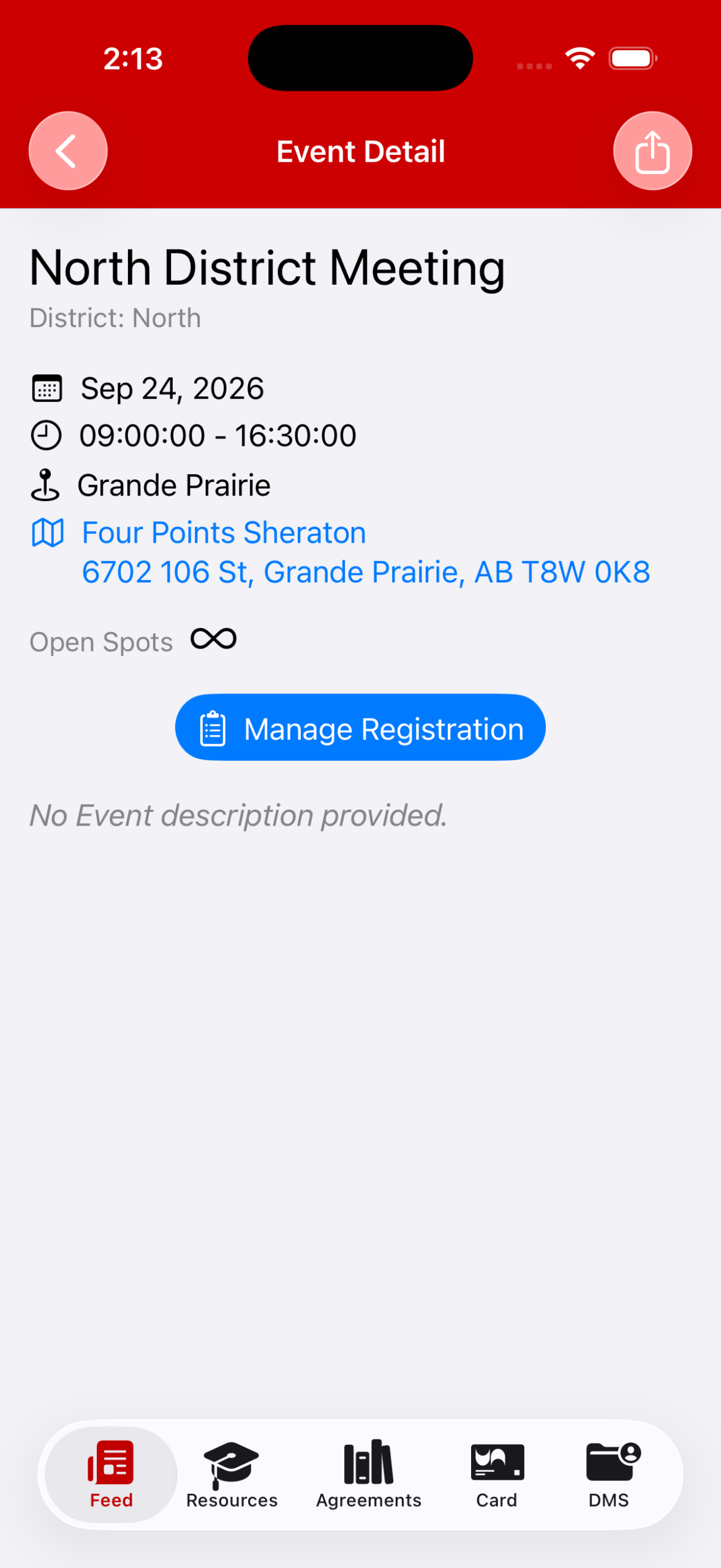
From the Event Detail page, you can then Manage your Registration.
- You can change your Registration Type to Withdrawn, say, by searching the Event and tapping Manage Registration:
Waiting Lists
Some Events have the option of Waiting List if the Event is at attendance capacity. The Waiting List is managed by the Event Manager. Please note: When a spot becomes available, acceptance will be determined on a first-come, first-served basis according to response time, rather than the order in which individuals joined the wait list.
- Navigate to the Event Detail page
- Tap “Join Waiting List”:
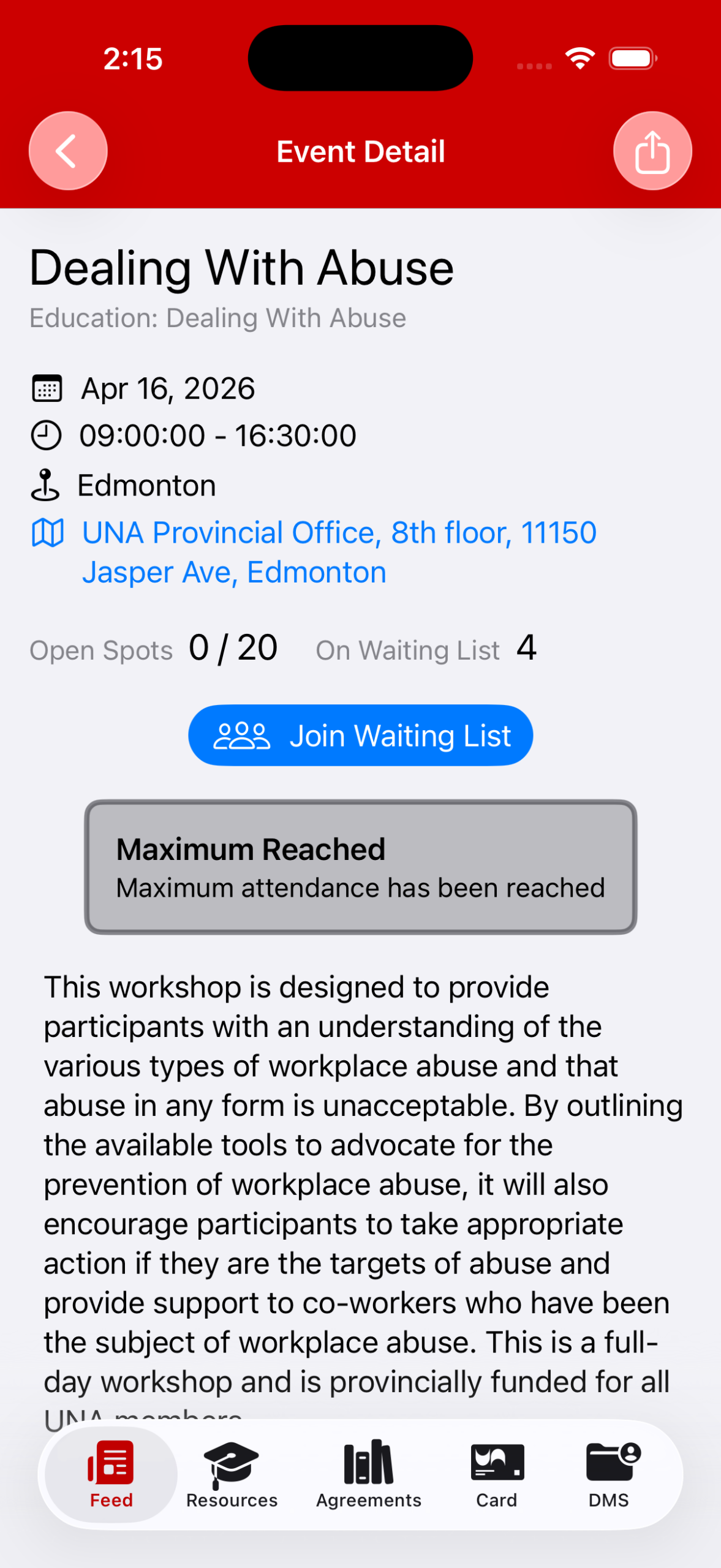
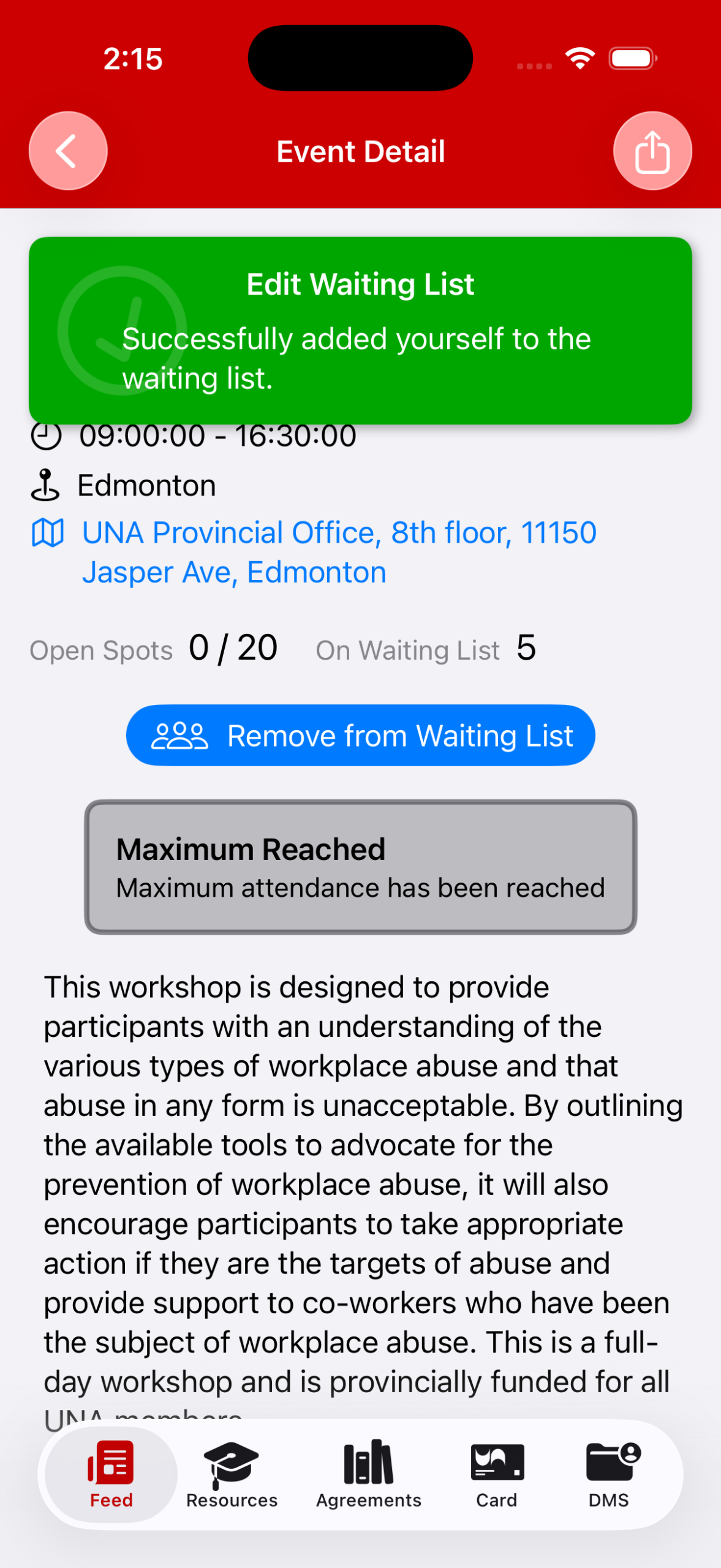
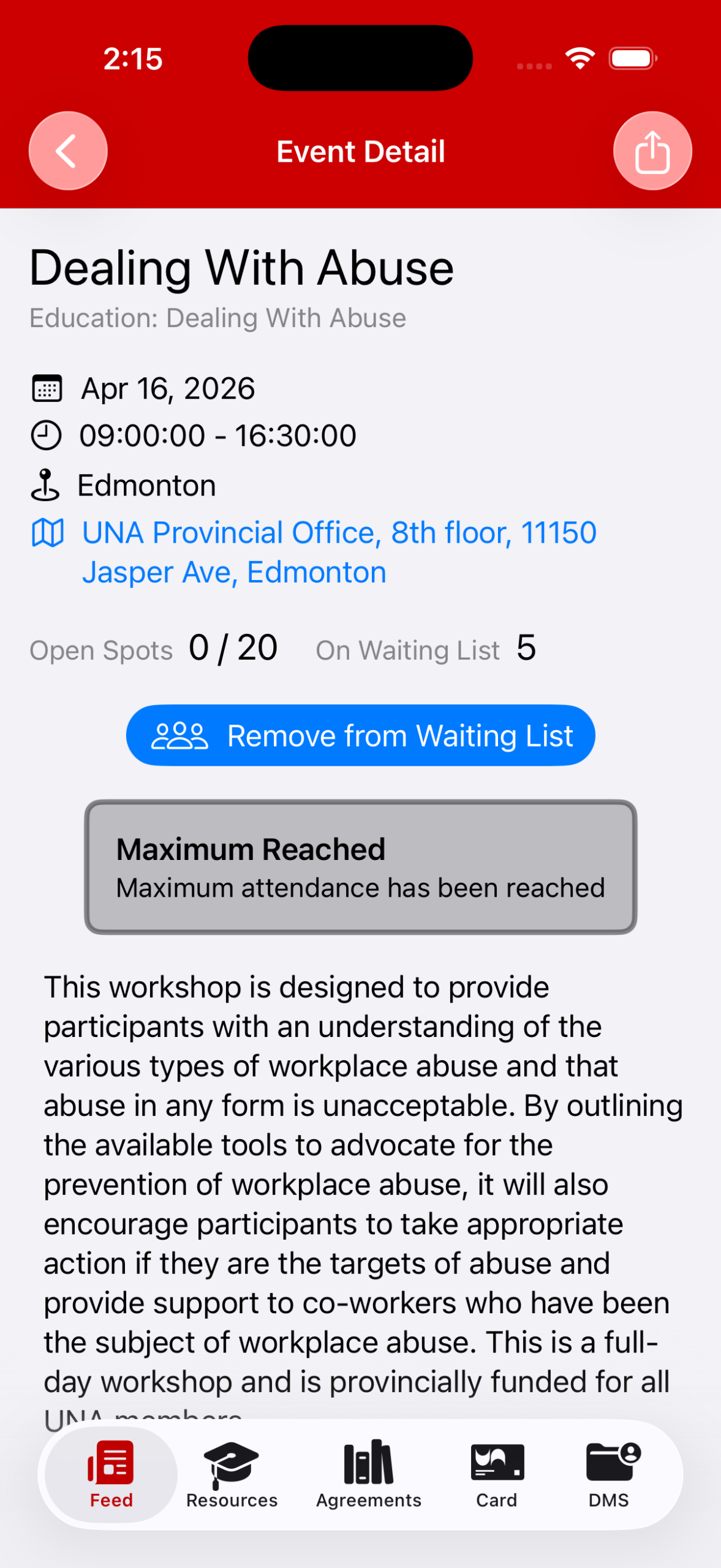
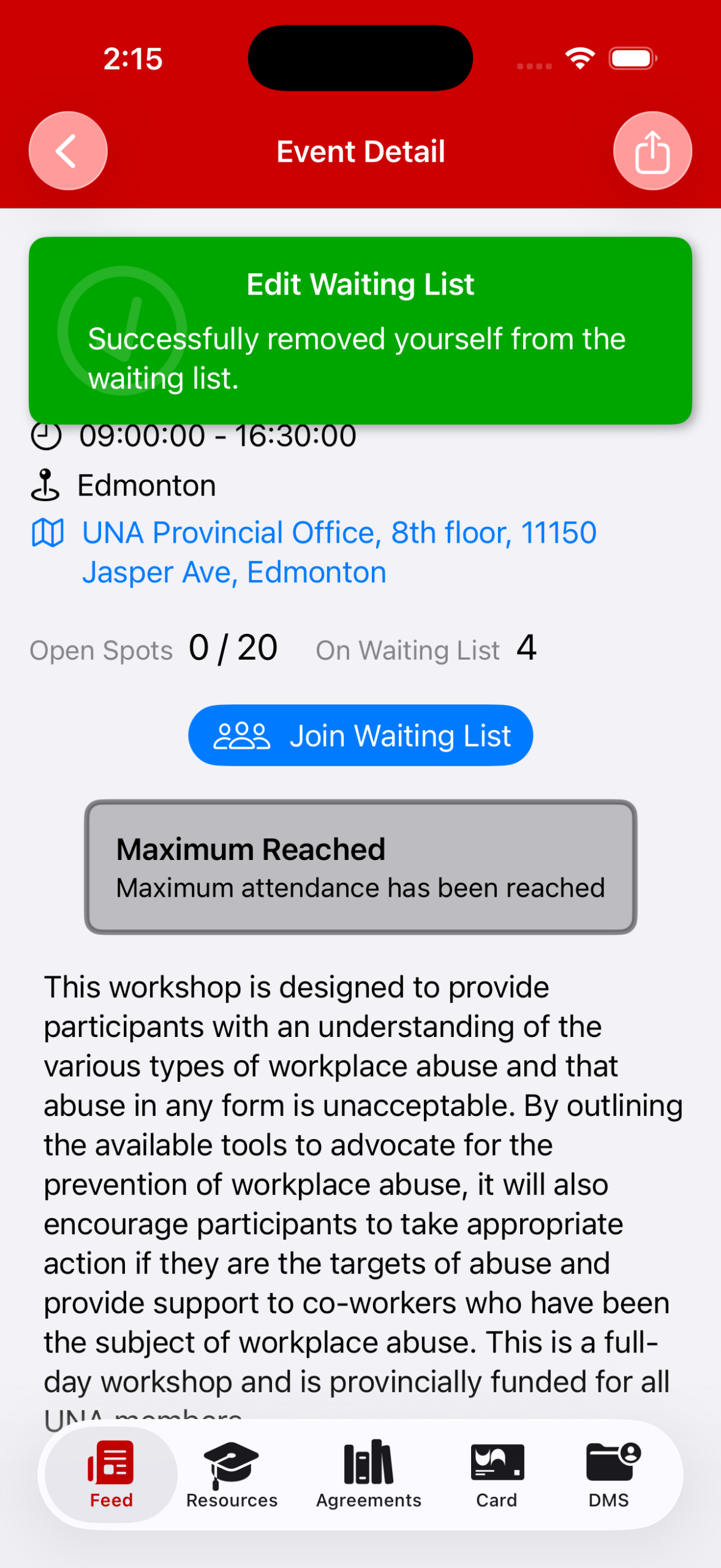
- Here, you can also remove yourself from the Waiting List:
Personal Attributes
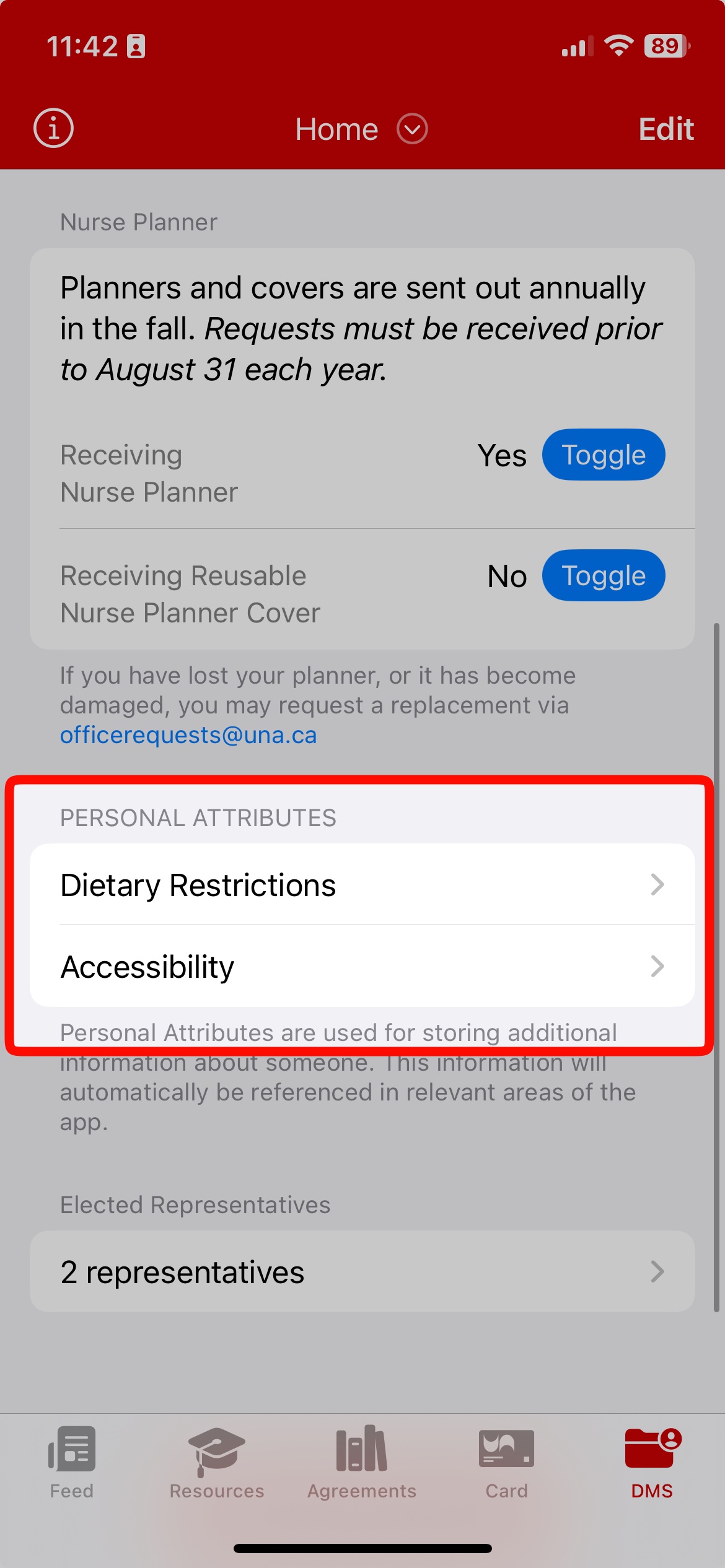
You can find and edit your Personal Attributes which will help specify any Dietary Restrictions or Accessibility Needs for Events.
- In the DMS Tab (bottom right) > Home (the red Nav Menu at the top) – scroll to the bottom section
- Dietary Restrictions: You can choose multiple restrictions (such as Vegetarian and Dairy Free).
- “Other” is a blank field that you can fill in.
- Accessibility: You can choose multiple restrictions (such as Mobility and Hearing).
- “Other” is a blank field that you can fill in.
- “Other” is a blank field that you can fill in.