
To use E-mail Templates – you must be using the Modern Version of Zimbra.
Creating a new template
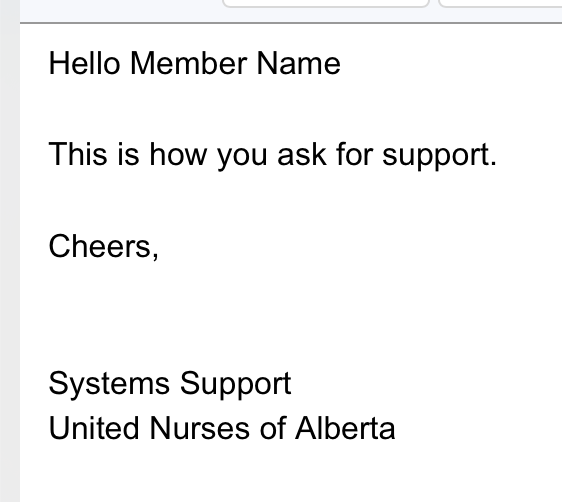
The user can create a template with all the boiler-plate text and placeholders as follows.
- Compose an email as usual. (Click on “New Message” button in the Mail tab)
- Add the your Subject, and Body of the message formatted the way you would like.
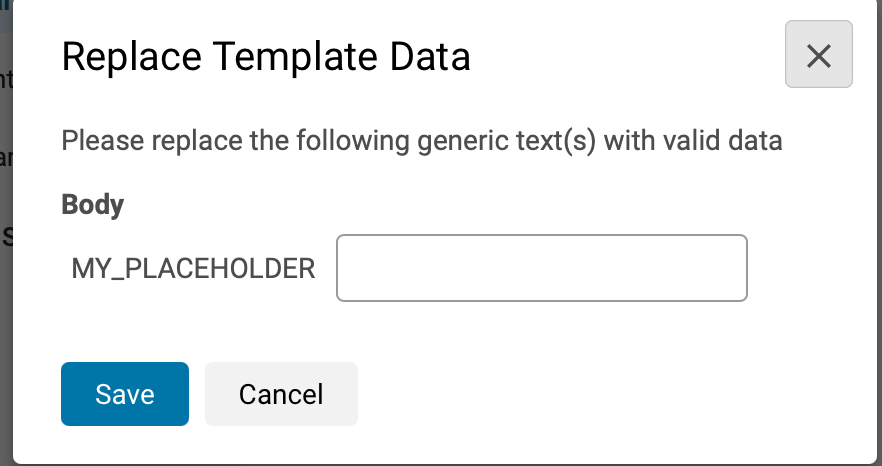
- If you’d like a “fill in the spot” – We can add placeholders where appropriate using $ sign with a name in curly braces as ${MY_PLACEHOLDER}
- Placeholder names are case-sensitive and can use alphabets, numbers, hyphen, underscore, dot and space characters.
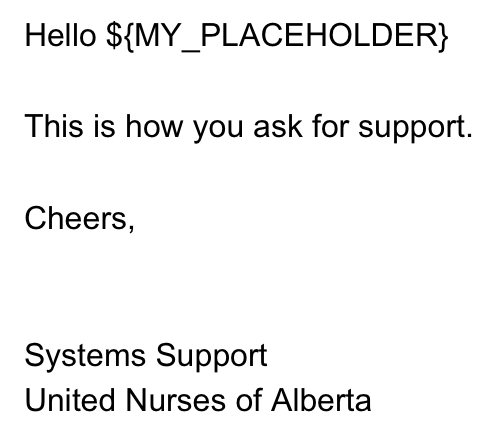
- Placeholder names are case-sensitive and can use alphabets, numbers, hyphen, underscore, dot and space characters.
Saving the template
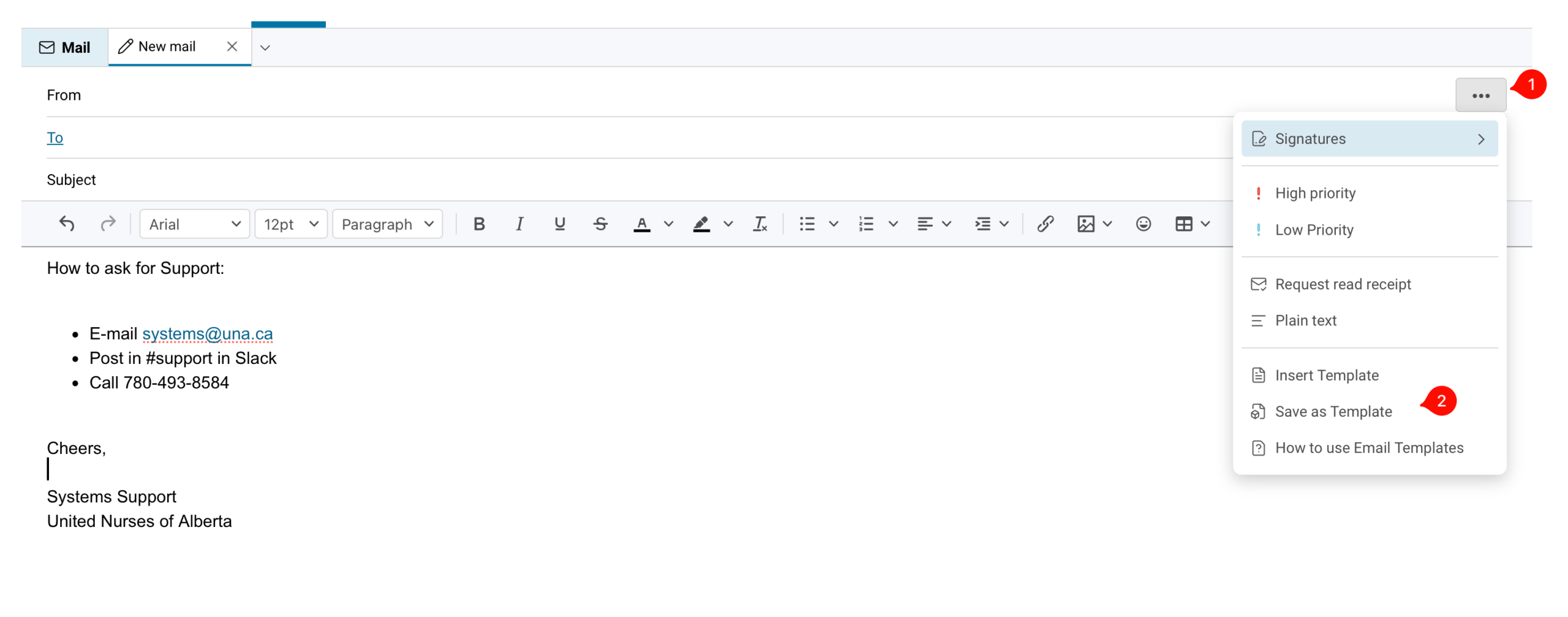
- Once the user creates a new template with the above steps, s/he should click on three dots menu and choose “Save as Template” option.
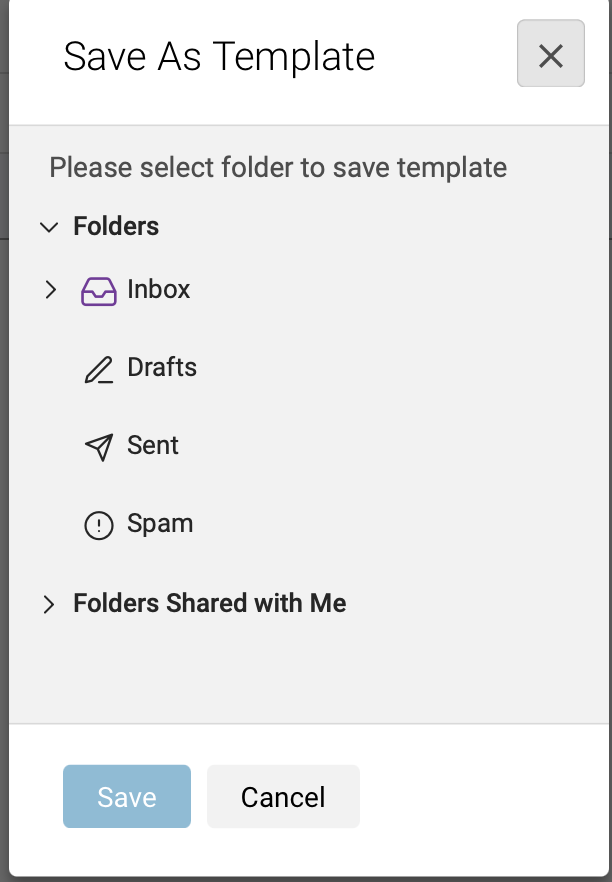
- It will show the list of folders to save the template. User can select any folder and click the Save button.
- Note: User can also save templates in any “Shared Folders” with write permission.
Composing an email with templates
- Click on “New Message” button in the Mail tab to compose a new message.
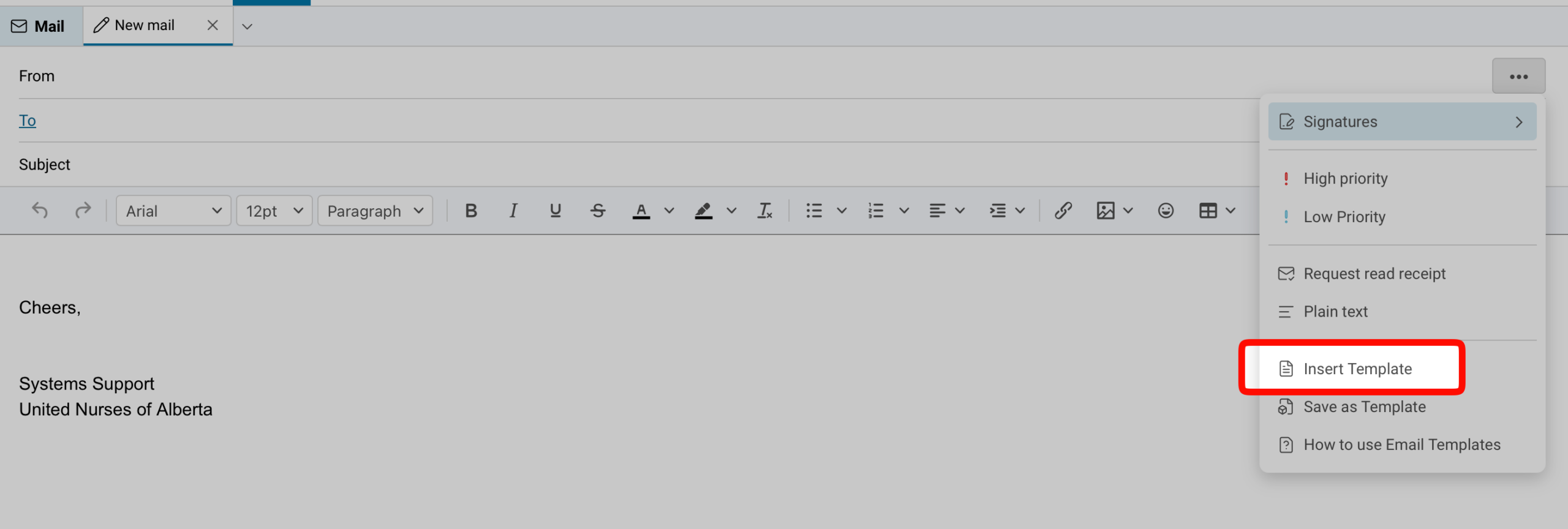
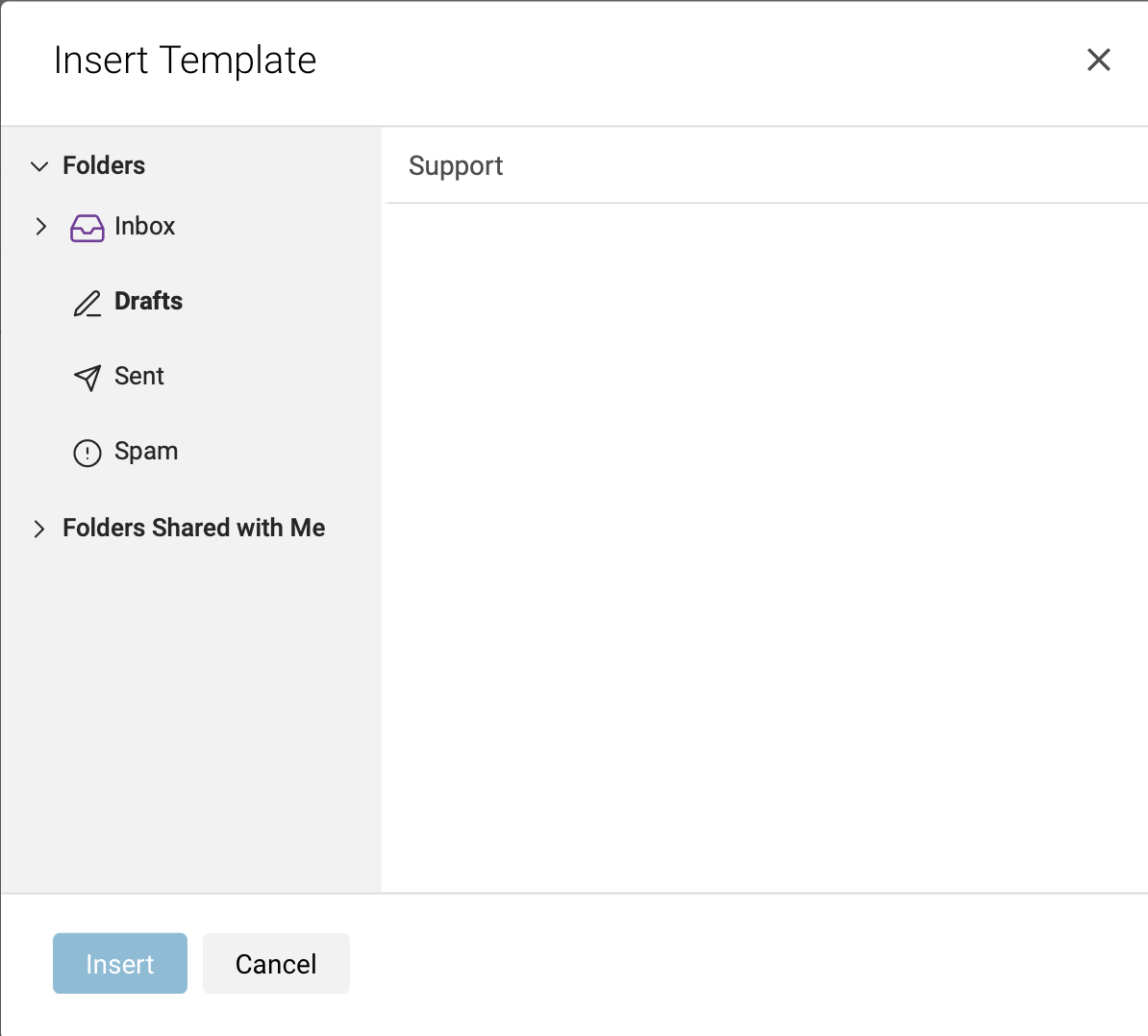
- Click on three dots menu and choose the “Insert Template” option, it will show the list of folders in a dialog.
- Click on any folder and it will list templates in that folder.
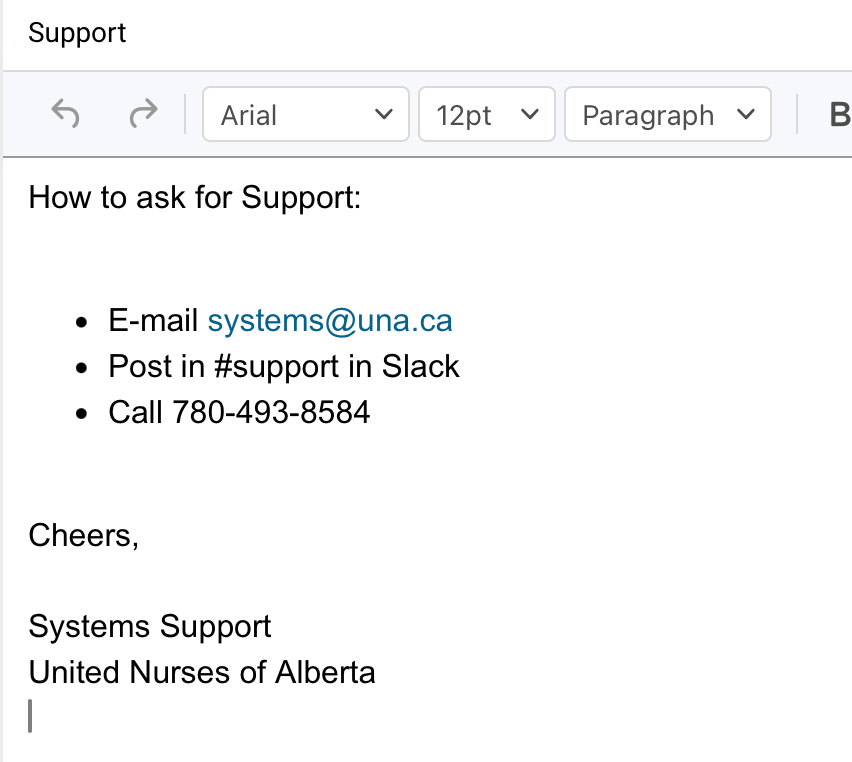
- Click on any template and click “Insert” button to insert that template.
- In an email, the user can insert as many templates as you wish.
- The user can insert the template at any position using the cursor.
Notes
- Email templates works in HTML mode. Plain text mode not supported.
- Templates are saved as nothing but regular emails. In that sense any previously existing email can be used in the Insert dialogue.